
Closing a business comes with the usual goodbye tour, final tax returns, canceling licenses, telling vendors, shutting down bank and merchant accounts. The sneaky one people forget is the accounting data. And it is a painful thing to “remember later.”
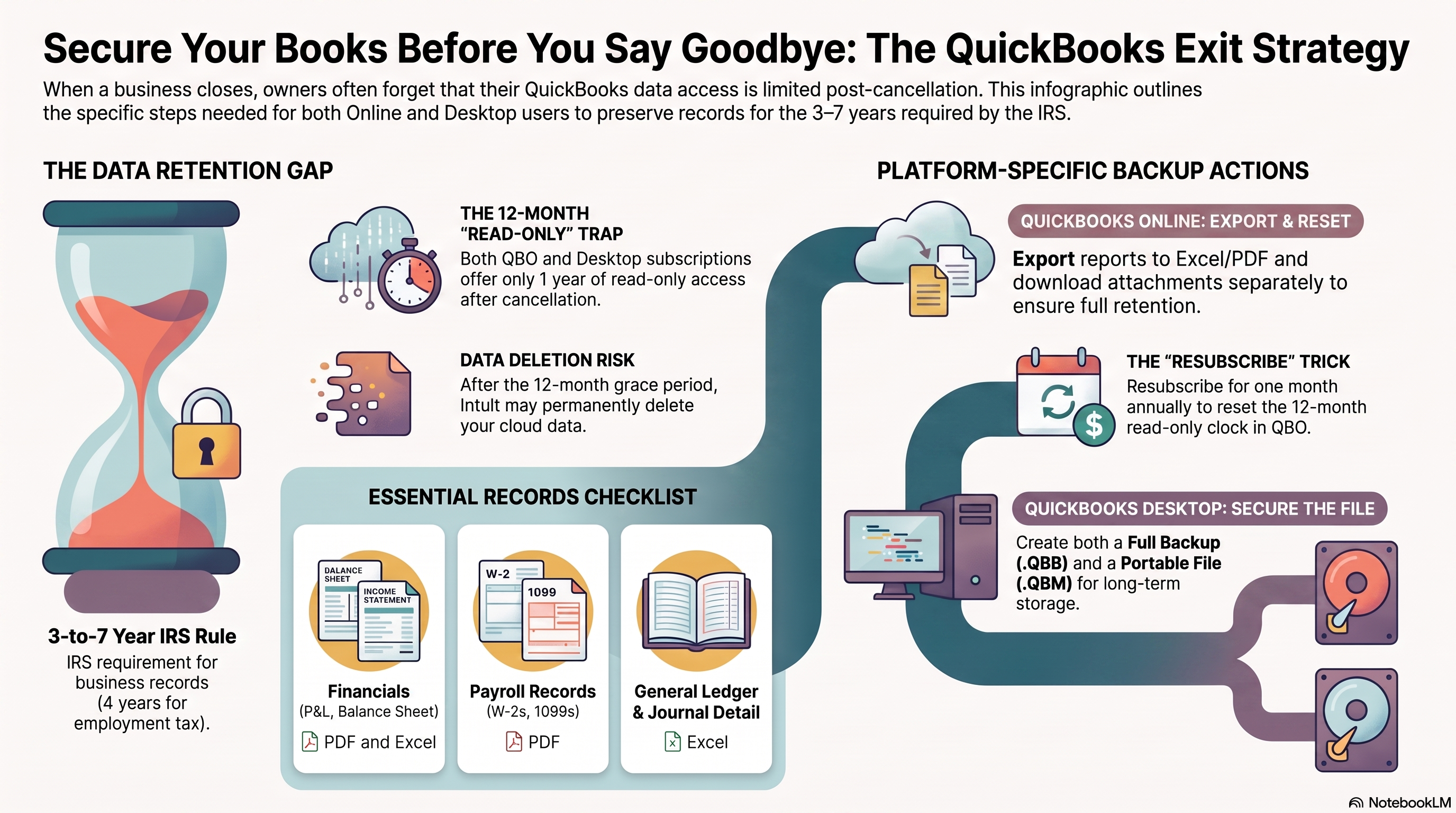
The IRS generally expects you to keep business records at least three years, sometimes up to seven, and employment tax records at least four years. That timeline does not care that your QuickBooks subscription is gone. (If you want the official IRS version, start here: IRS recordkeeping guidelines.)
What you should do depends on whether you are in QuickBooks Online or QuickBooks Desktop. Here’s the practical, no-drama way to protect your data before you walk away.
If You Use QuickBooks Online
QuickBooks Online is cloud-based, which is convenient right up until you cancel. Then you are living on Intuit’s timeline, not yours.
You get 12 months of read-only access
When you cancel QuickBooks Online, you typically get read-only access for one year from the cancellation date. You can log in, view transactions, run reports, and export data, but you cannot enter anything new, reconcile, or edit. Intuit’s explainer on what happens to your data when you cancel is here: What happens to my QuickBooks Online data if I cancel?
After that year, your data can be deleted. To get back in, you would have to resubscribe, and recovery is not something you want to gamble your sanity on.
Twelve months sounds like plenty until you remember you may need records for three to seven years. Read-only access is a grace period, not an archive.
What to export before (or during) that window
- Use the built-in export tool. Go to Settings (gear icon) → Export Data. Pick your date range and export lists and reports to Excel. Intuit’s step-by-step is here: Export reports, lists, and other data from QuickBooks Online
- Save key reports as PDFs. Minimum set: Profit & Loss (by year), Balance Sheet, General Ledger, Trial Balance, A/R Aging, A/P Aging, Sales by Customer, plus any payroll and sales tax reports.
- Download attachments. Receipts and documents attached to transactions do not automatically follow your report exports. Download them separately.
- Export payroll records. If you ran payroll in QuickBooks, save payroll reports, W-2s, and tax filings.
- Consider a full backup or conversion. Depending on your plan, you may be able to download a full backup or convert to a QuickBooks Desktop file for long-term storage.
QuickBooks Online Advanced: local backup (CSV)
If you are on QuickBooks Online Advanced, Intuit also offers a backup feature that can create a local backup. Just know what you’re getting: it’s a set of CSV files, not a nice, tidy working company file you can open and keep using like Desktop. It’s still useful for record retention and data extraction, it’s just not as plug-and-play.
How-to from Intuit: Back up and restore your QuickBooks Online Advanced company
Store your archive in at least two places, for example an external drive plus cloud storage, and label folders by year like a person who wants future peace.
Option B: reset the 12-month window by resubscribing
If you want your books to remain viewable inside QuickBooks Online longer than a year, there is a workaround: the 12-month read-only clock starts from the most recent cancellation date. So you can resubscribe for one month, then cancel again, to reset the 12-month read-only window.
In real life, that can mean paying for one month roughly once a year to keep read-only access available during a three-to-seven-year retention period, without paying for a full active subscription the whole time.
A few cautions:
- Set a calendar reminder. If you miss the deadline and the 12 months lapse, your data may be deleted and this trick stops being clever.
- Policies can change. Intuit can change retention rules whenever they feel like it, so do not make this your only plan.
- Export everything anyway. Treat the resubscribe-and-cancel cycle as a convenience for occasional lookups, not your actual backup strategy.
If You Use QuickBooks Desktop
Desktop files live locally, which gives you more control. The catch is that newer Desktop versions are subscription-based, and access can expire.
Read-only access for 12 months after canceling
If you are on a subscription version of QuickBooks Desktop (generally 2022 and newer, including Enterprise), canceling usually gives you 12 months of read-only access. You can open the file and view data, but you cannot edit. After that, you may not be able to open the company file at all without renewing. Intuit’s help article on this “view mode” is here: Renew your subscription or use view mode in QuickBooks 2023
So yes, Desktop users also need exports that live outside QuickBooks.
What to back up before you cancel
- Create a full backup (.QBB). File → Back Up Company → Create Local Backup. Confirm it completes successfully. Step-by-step here: Back up your QuickBooks Desktop company file
- Create a portable file (.QBM) as a second copy that is easier to move around. Step-by-step here: Create and open portable company files in QuickBooks
- Copy the working company file (.QBW) and supporting files.
- Export reports to PDF and Excel. Save the same core reports listed above so you can open them forever, even if QuickBooks becomes “a vintage software experience.”
- Store copies in multiple locations and test them. A backup that only lives on the old office computer is just a future regret with extra steps.
If you own an older non-subscription Desktop license, you may keep access longer, but computers die and software ages. PDFs and spreadsheets are the cockroaches of recordkeeping, they survive everything.
A Quick Record-Retention Checklist
Whichever version you use, make sure your archive includes:
- Final and prior-year financial statements
- General ledger and journal detail
- Bank and credit card reconciliations
- Invoices, receipts, and vendor bills
- Payroll records, W-2s, and 1099s
- Sales tax and income tax filings
- Fixed asset and depreciation schedules
The Bottom Line
QuickBooks Online and QuickBooks Desktop both commonly offer a 12-month read-only grace period after cancellation. That is helpful, but it is not long enough for real-world record retention.
Export everything to formats you control (PDF, Excel, backup files), store copies in at least two locations, and only then cancel. If you are on QuickBooks Online, the one-month resubscribe trick can keep read-only access alive year by year, just do not let it replace real backups.
This article is for general information only and is not tax or legal advice. Talk to your accountant or attorney about your specific record-retention requirements
If you would like to learn more tips and tricks, click here to access our entire course library!!
Stay connected with news and updates!
Join our mailing list to receive the latest news and updates from our team.
Don't worry, your information will not be shared.
We hate SPAM. We will never sell your information, for any reason.
