
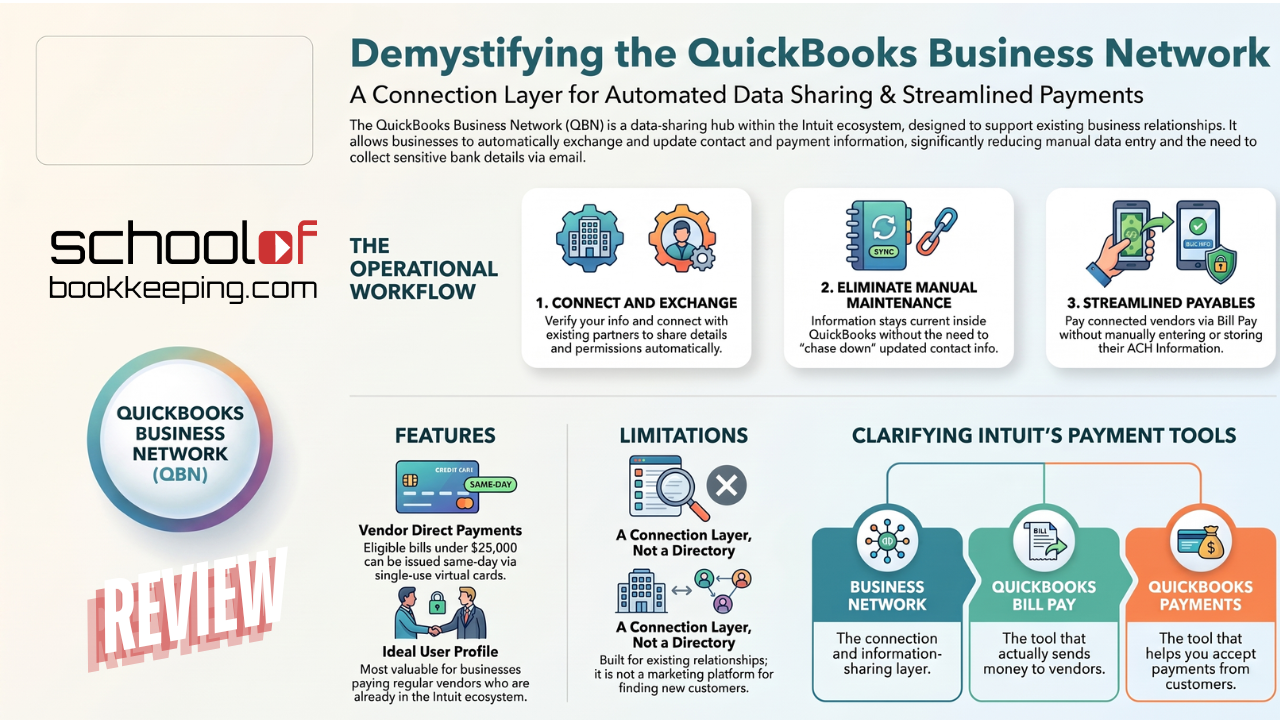
QuickBooks Business Network is Intuit’s way of helping businesses connect with other businesses they work with, share key details (like contact info and payment preferences), and keep that information updated inside QuickBooks. In practice, it is most useful when you want to pay vendors or get paid by customers with less back-and-forth.
This article explains what the network is, how it’s used day to day, and where it shines, plus where you should keep your expectations in check.
What the QuickBooks Business Network is
At a high level, the Business Network is a set of connections between businesses inside Intuit’s ecosystem. When you connect with another business, you can exchange certain business info so you do not have to retype it, chase it down, or maintain it manually.
It is not a marketing platform, and it is not a vendor directory you browse for new relationships. It is designed to support existing business relationships.
How it’s used, the practical workflow
Most real-world use falls into a simple loop:
- Verify and set up your business info
- Connect with a customer or vendor
- Exchange details and permissions
- Use the connection to pay, get paid, and keep info current
The main benefit is operational, fewer manual updates and fewer “can you confirm your info again” messages. The tradeoff is that you are relying on Intuit-supported connection flows, and not every business will be eligible for every feature.
Pay vendors through QuickBooks Bill Pay without collecting ACH details
If you use QuickBooks Bill Pay and you are paying a vendor who is a payable member you are connected with in the network, you can schedule payments without manually entering their ACH info.
Objectively, this can reduce the amount of sensitive information you collect and store yourself. It can also reduce data entry. It does not remove the need to understand what payment method is being used and how the vendor will receive the funds.
How the vendor receives the money (what “direct pay” can mean)
Depending on the bill and the vendor, Bill Pay can route payment in different ways.
- In some cases, the vendor provides contact and ACH information through an Intuit flow (for example, by signing up for a QuickBooks Money account). In that setup, you can pay the vendor through Bill Pay without you manually keying in their bank details, and the vendor receives an ACH deposit to the bank account they provided.
- In other cases, Intuit may convert an eligible bill payment to Vendor Direct, which is still funded from your bank by ACH, but presented to the vendor as a virtual card payment.
Vendor Direct (what it is, how it works, and what to watch)
Intuit describes Vendor Direct as an automated payment solution that can issue eligible bill payments the same day as the selected withdrawal date at no additional cost. When you upload a bill or email your vendor’s invoice into your account, Intuit evaluates it for Vendor Direct eligibility.
If the bill is eligible, once you schedule the payment it is mapped to the vendor’s linked payment method and issued via a single-use virtual card, a temporary digital payment method created for a specific payment amount.
How it works (plain-English version)
- You fund the payment from your bank account via ACH transfer.
- The vendor is presented with Intuit’s virtual card.
- Your bank information is not displayed, and your personal credit card is not used.
- Once initiated, it processes as a virtual card payment and the payment method cannot be changed.
Eligibility rules (why it might not show up)
Only eligible bills can be paid as Vendor Direct. Even if a vendor was previously paid via Vendor Direct, a specific bill may not be eligible.
To qualify, Intuit notes the bill attachment must include a link to a payment portal that supports credit card transactions. Also:
- Payment amount must be less than $25,000
- Must be a one-time payment, not recurring
Cutoff times (when “same day” applies)
Eligible payments are issued the same day as the Withdrawal Date when scheduled before the cutoff time. Intuit notes the cutoff time depends on how your vendor accepts payment:
- Vendors who accept payment through QuickBooks Payments: 3:00 PM PT (business days only)
- All other vendors: 5:00 PM PT (business days only)
What the vendor experiences
Intuit notes the vendor receives the funds without needing to manually process card numbers, codes, or PINs. However, routine verification steps may delay delivery of funds, and deposit timing may vary depending on the vendor’s bank.
Enable or opt out
Vendor Direct is enabled by default in all QuickBooks Bill Pay plans. If it was disabled, Intuit says you can re-enable it in Account and settings, Expenses tab, within the Bill Pay tile.
If you prefer eligible bills not be converted to Vendor Direct, Intuit notes you can change the payment method on a per-payment basis before the payment is initiated, or opt out completely in Company Settings.
If your vendor is not in QuickBooks Online
If you want to pay a vendor who does not have QuickBooks Online, Intuit notes you can invite them to sign up for a QuickBooks Money account so they can provide contact and ACH info.
This is convenient for some vendors and annoying for others. Either way, it is worth setting expectations up front: the vendor may need to complete a setup step before they can receive payment by direct deposit.
How Bill Pay and QuickBooks Payments fit into the network
A common point of confusion is where the Business Network ends and where payments products begin.
- Business Network is the connection and information-sharing layer.
- QuickBooks Bill Pay is the tool that actually sends money to vendors.
- QuickBooks Payments is the tool that helps you accept payments from customers.
The network can make payment workflows smoother because the right details can already be in place, but the network itself is not the thing moving money.
What it does well (pros)
- Less data entry and fewer mistakes when vendor or customer details are shared through a connection.
- Potentially faster payables setup when paying connected vendors who can provide details through Intuit-supported flows.
- Less chasing for payment details, especially when vendors can provide information through a self-serve process.
- More consistent records because updates can flow through the connection instead of living in someone’s inbox.
Where to be cautious (cons and limitations)
- Not intended for finding new vendors or customers, it is built around existing relationships.
- Availability can be limited by geography and product eligibility, so not every business will be able to use every feature.
- You still need internal controls, including verifying you are paying the right vendor and confirming payment method expectations.
- Vendor adoption friction, some vendors will not want to create another account or complete another setup step.
- It can feel “invisible” until you need it, which makes it easy to ignore setup until a payment is urgent.
Objective take: who should care most
You will get the most value from the QuickBooks Business Network if:
- You pay vendors regularly and want fewer manual steps.
- You work with vendors who are already in the Intuit ecosystem, or are willing to complete an Intuit flow to share details.
- You want to reduce the operational risk of collecting bank details through email.
If you only pay a small number of vendors a few times a year, it may feel like extra setup for a modest payoff.
Quick FAQ
Is the Business Network the same thing as Bill Pay?
No. The Business Network is the connection layer. Bill Pay is a payment tool that can use those connections to reduce manual entry.
Do vendors need QuickBooks Online to get paid?
Not always. Depending on the payment method and setup, vendors may be able to provide details through an Intuit account such as QuickBooks Money, and some eligible bills may be converted to Vendor Direct. See Intuit’s overview of the vendor direct payment method: Learn More
Sources
- https://quickbooks.intuit.com/learn-support/en-us/help-article/pay-bills/pay-bills-vendor-direct-payment-method/L8WVnsuuY_US_en_US
- https://quickbooks.intuit.com/learn-support/en-us/help-article/vendor-management/learn-quickbooks-business-network/L8RZ42iRj_US_en_US
- https://quickbooks.intuit.com/learn-support/en-us/help-article/receive-payments/get-paid-payable-member-quickbooks-business/L2zI6pnZv_US_en_US
- https://quickbooks.intuit.com/learn-support/en-us/help-article/pay-bills/pay-payable-network-members-quickbooks-bill-pay/L323IjtnI_US_en_US
If you would like to learn more tips and tricks, click here to access our entire course library!!
Stay connected with news and updates!
Join our mailing list to receive the latest news and updates from our team.
Don't worry, your information will not be shared.
We hate SPAM. We will never sell your information, for any reason.
