
What Playbooks are
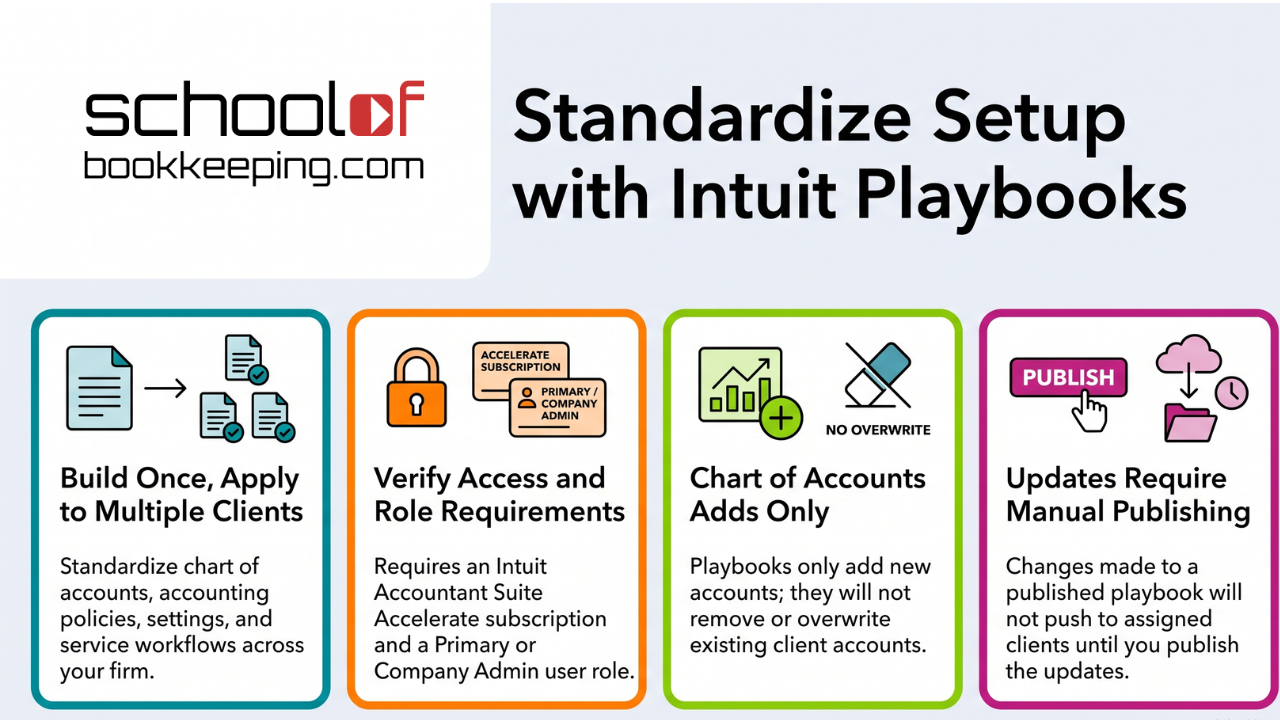
Playbooks are reusable templates designed to help accounting firms standardize how they set up and manage client files. The idea is simple: build a template once, then apply it to multiple clients instead of repeating the same setup work every time.
According to Intuit, a playbook can cover items like your chart of accounts, accounting policies, company settings, and service workflows, then be applied to a client in a few clicks.
Requirements (who can use Playbooks)
Before you plan your whole firm around Playbooks, confirm these requirements:
- Subscription requirement: Playbooks are available only to firms on Intuit Accountant Suite Accelerate. If your firm is on Intuit Accountant Suite Core, you will see an upgrade prompt instead of the Playbooks tool.
- Role requirement: In the current release, only Primary Admins and Company Admins can see and use Playbooks.
If you are not seeing Playbooks, the subscription level and user role are the first two things to check.
What a Playbook includes (sections)
When you create a playbook, it is organized into sections. Intuit lists the following:
- Overview: Playbook name and an optional description.
- Client environment:
- Chart of accounts (adds new accounts only)
- Accounting policies
- Company settings (includes some settings from the Advanced tab)
- Service delivery: Books Close template
- Firm settings:
- Default access (user groups)
- Client access
- Client custom fields
Key limitations to know up front
Playbooks can reduce repetitive setup work, but there are some practical constraints worth calling out:
- Accelerate-only: If you are on Core, Playbooks are not available.
- Blank templates only (for now): Intuit notes that you can only start from a blank playbook at this time.
- Chart of accounts behavior: The chart of accounts portion adds new accounts only, it does not replace or remove existing accounts.
- Published updates are not automatic: Editing a published playbook does not change client files until you publish the updates.
- Removing a client is not a rollback: If you remove a client from a playbook, the configuration already applied stays in place. They just stop receiving future playbook updates.
How to create a playbook (high-level)
Intuit’s workflow is:
- Go to Firm hub, then select Playbooks.
- Select Create to open the New Playbook modal.
- Enter a name and description.
- Update the elements you want included, and build out each section.
- Select Save on each section as you work.
- Select Next when you are ready.
Result: the playbook is ready to publish, and you can apply it to clients in the same flow or later.
How to apply a playbook to a client
Once a playbook is published, Intuit says you can apply it in multiple ways:
- While publishing: When you select Next in the builder, choose the clients you want to apply the playbook to.
- From the Playbooks page: Select the client count on the playbook, then add clients.
- From the client list: Assign a playbook as part of the Add Client flow.
Result: the playbook’s settings and templates are applied to each selected client, and those clients count toward that playbook on the Playbooks page.
Managing playbooks over time
The Playbooks page functions as your firm’s library.
- Go to Firm hub and select Playbooks.
- Review the list of your draft and published playbooks, their descriptions, and the number of assigned clients.
- Select a playbook to open it. From there, you can make changes to its templates, or add or remove clients.
Important behavior to remember:
- Edits to a published playbook do not affect clients until you publish the updates. Publishing pushes the changes to every client assigned to that playbook.
Troubleshooting and common errors
If something is not working as expected:
- If you cannot use Playbooks, confirm you are on Accelerate and that you are a Primary Admin or Company Admin.
- If you see a “data failed to load” error, Intuit recommends refreshing the page and confirming the information you entered is valid.
Practical takeaways
- Playbooks can be useful for firms that want consistent onboarding and standardized service delivery.
- The biggest gating items are subscription level (Accelerate) and admin role permissions.
- Expect a bit of process discipline: changes require publishing, and removing a client does not undo what was already applied.
Source article (Intuit Help): https://quickbooks.intuit.com/learn-support/en-us/help-article/add-or-remove-clients/use-playbooks-intuit-accountant-suite/L5ndk7zkW_US_en_US
If you would like to learn more tips and tricks, click here to access our entire course library!!
Stay connected with news and updates!
Join our mailing list to receive the latest news and updates from our team.
Don't worry, your information will not be shared.
We hate SPAM. We will never sell your information, for any reason.
